
Tour

The gate page, one state at a time.

Each picture below is a capture of the real VelvetRope page, served the way the gate serves it on a Staging address invented for the demo, StrataForge Robotics, a fictional company, with no real site behind it. The page draws a dark theme only, so each picture is the same in both themes, and it follows no light setting. Each state is shown on a desktop first and then on a phone.

Illustration: a single brass stanchion with a crimson velvet rope hanging from its hook, standing beside a heavy dark wooden double door that is slightly ajar with a thin sliver of warm light across a polished stone floor.

The first view

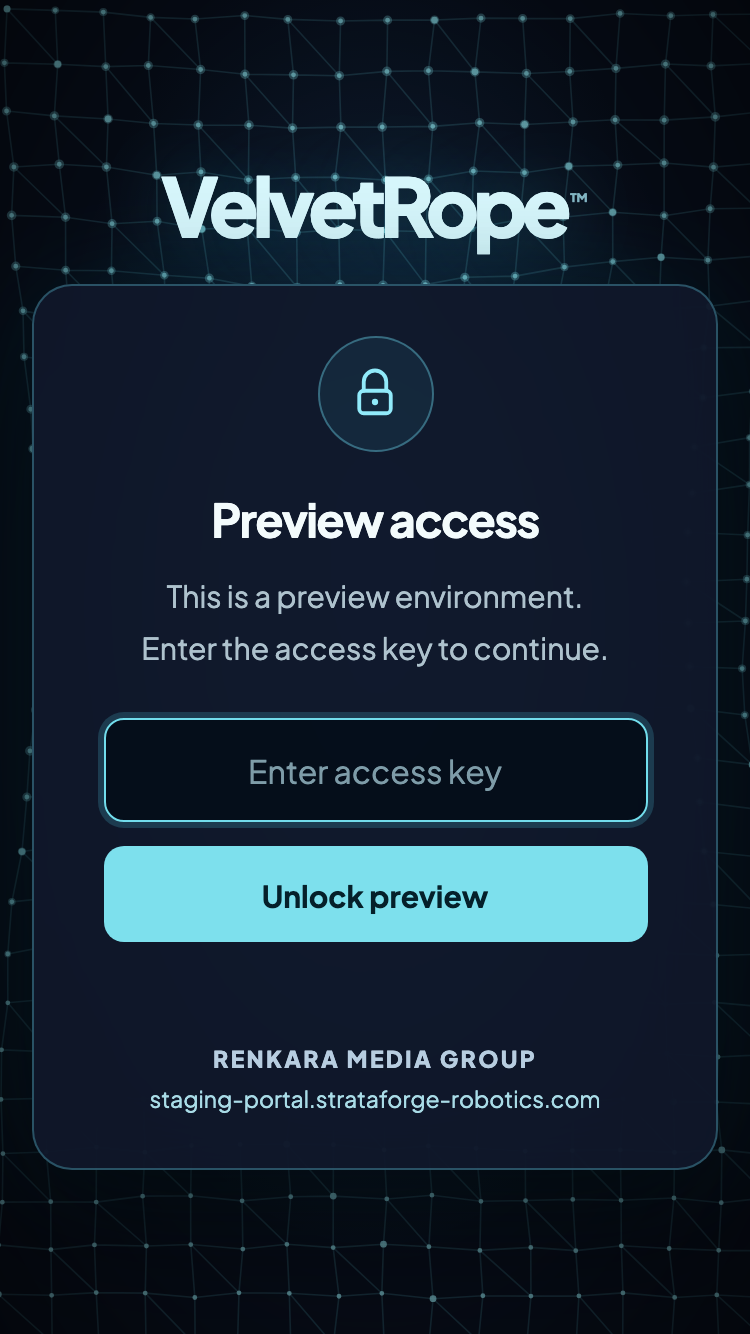
A visitor with no accepted key meets this instead of the site: the VelvetRope word mark over a card with a padlock, the words Preview access, a line saying this is a preview environment, a key field, and an Unlock preview button. Under them are the company's name and the Staging address that was asked for. The key field has focus when the page opens.
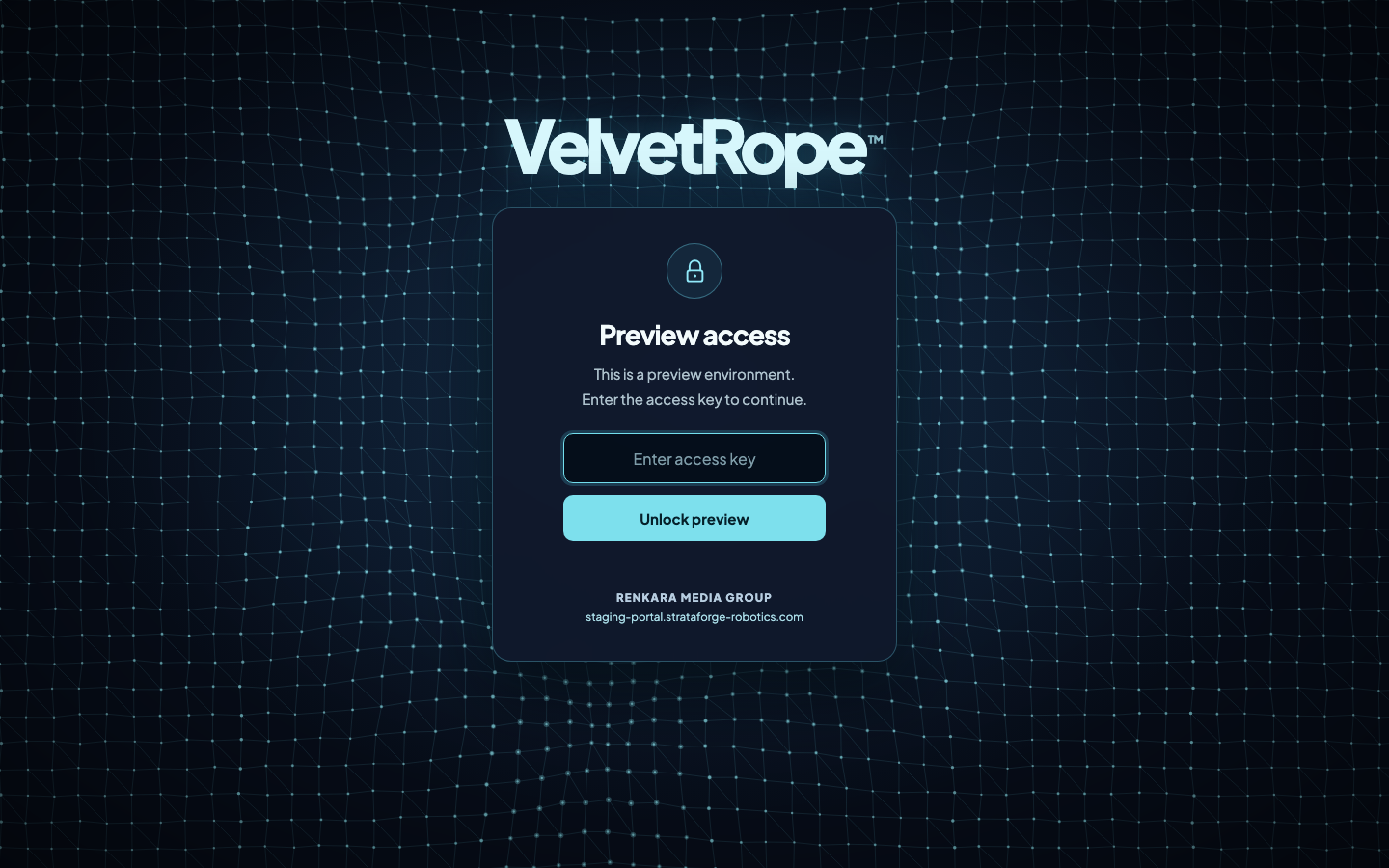
The Preview access page on a desktop: the word VelvetRope over a dark card with a padlock, the words Preview access, a key field, an Unlock preview button, the company name, and an invented StrataForge Robotics staging address, over a blue mesh.The Preview access page on a desktop: the word VelvetRope over a dark card with a padlock, the words Preview access, a key field, an Unlock preview button, the company name, and an invented StrataForge Robotics staging address, over a blue mesh.
On a desktop.
The Preview access page on a phone: the word mark above a card with a padlock, a key field, an Unlock preview button, and the invented staging address.The Preview access page on a phone: the word mark above a card with a padlock, a key field, an Unlock preview button, and the invented staging address.
On a phone.

A wrong key

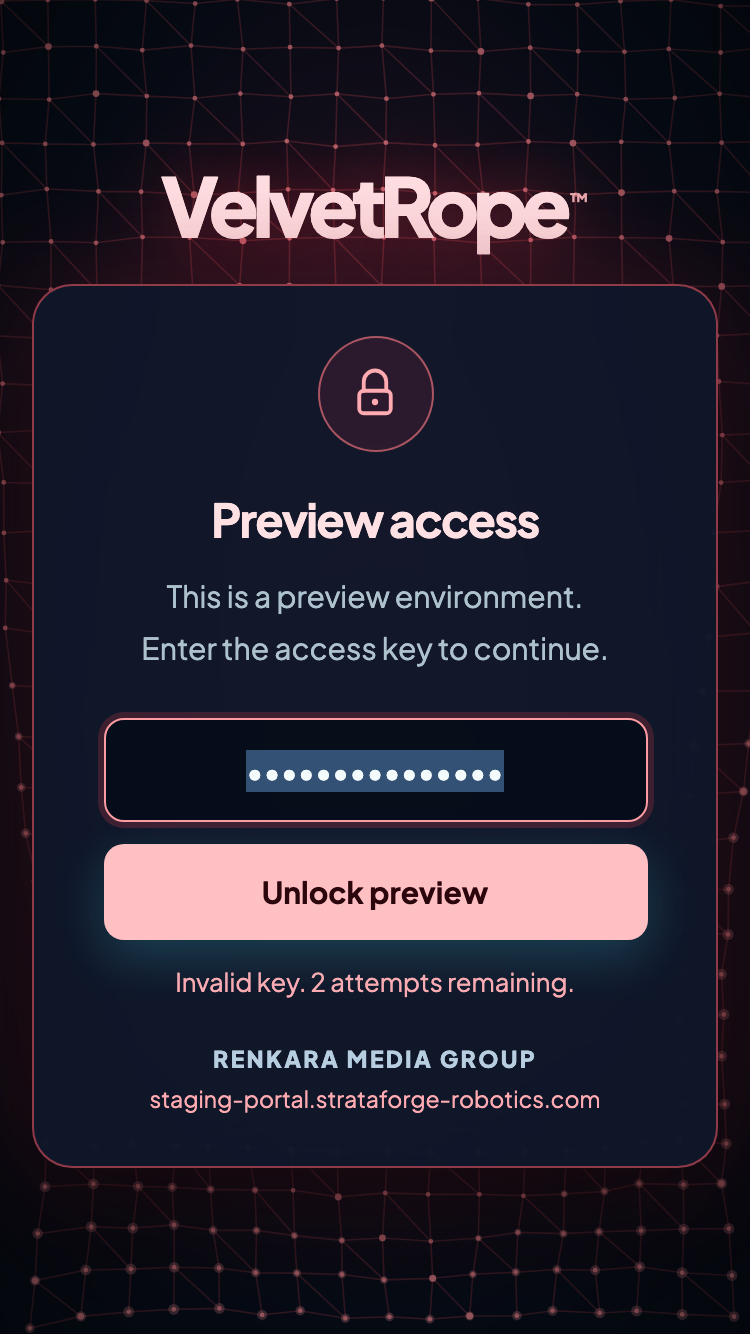
The card, word mark, and mesh turn red and the card shakes. The page says Invalid key and how many attempts remain: two after the first wrong key, one after the second. The field is selected so the next try replaces what was typed, and a screen reader reads the message without taking focus. A short low sound plays.
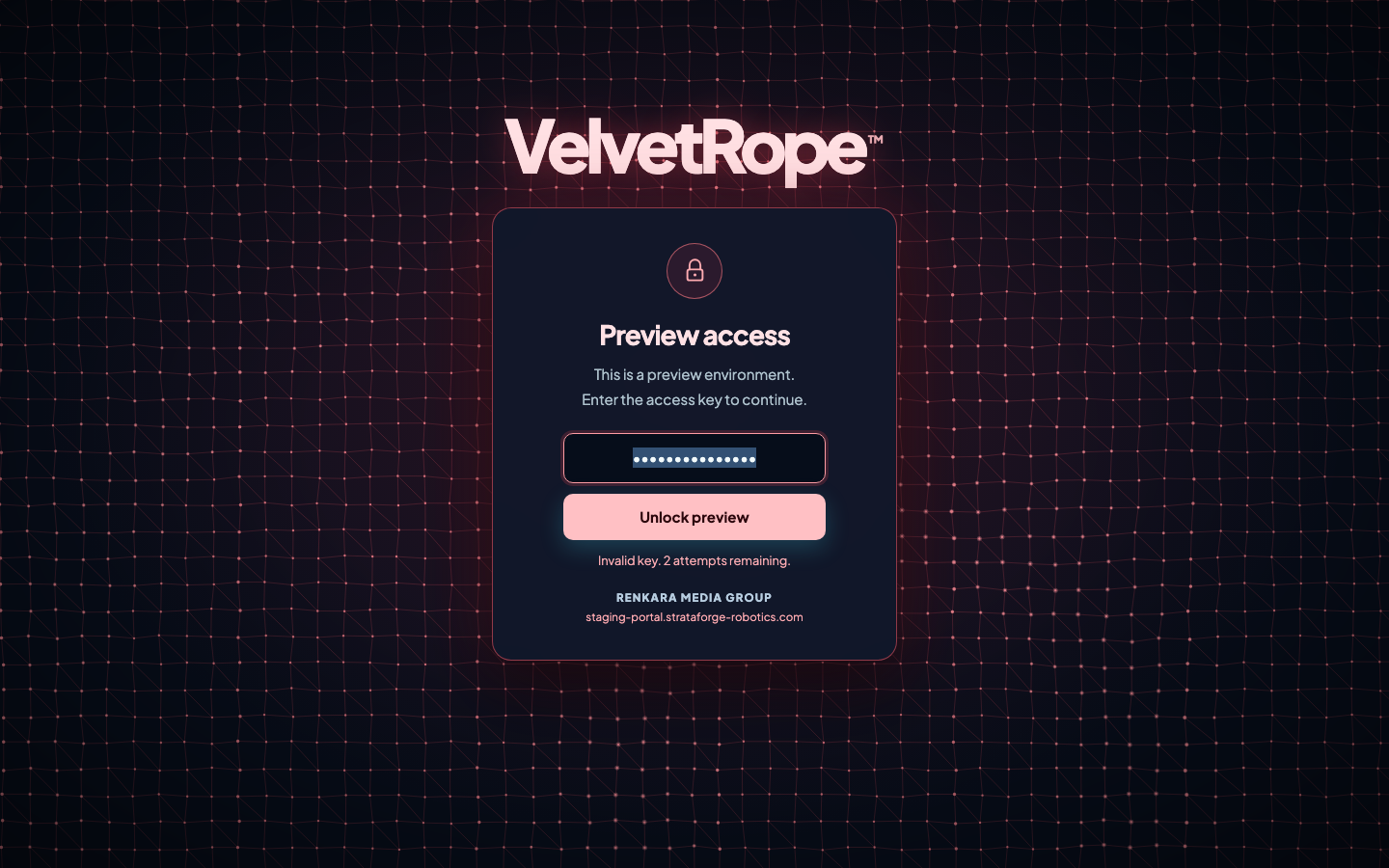
The page after one wrong key on a desktop: a red card, word mark, and mesh, a key field full of dots, and a line saying Invalid key, 2 attempts remaining.The page after one wrong key on a desktop: a red card, word mark, and mesh, a key field full of dots, and a line saying Invalid key, 2 attempts remaining.
On a desktop.
The page on a phone after one wrong key: a red card with the key field showing dots and a line saying Invalid key, 2 attempts remaining.The page on a phone after one wrong key: a red card with the key field showing dots and a line saying Invalid key, 2 attempts remaining.
On a phone.

Locked out

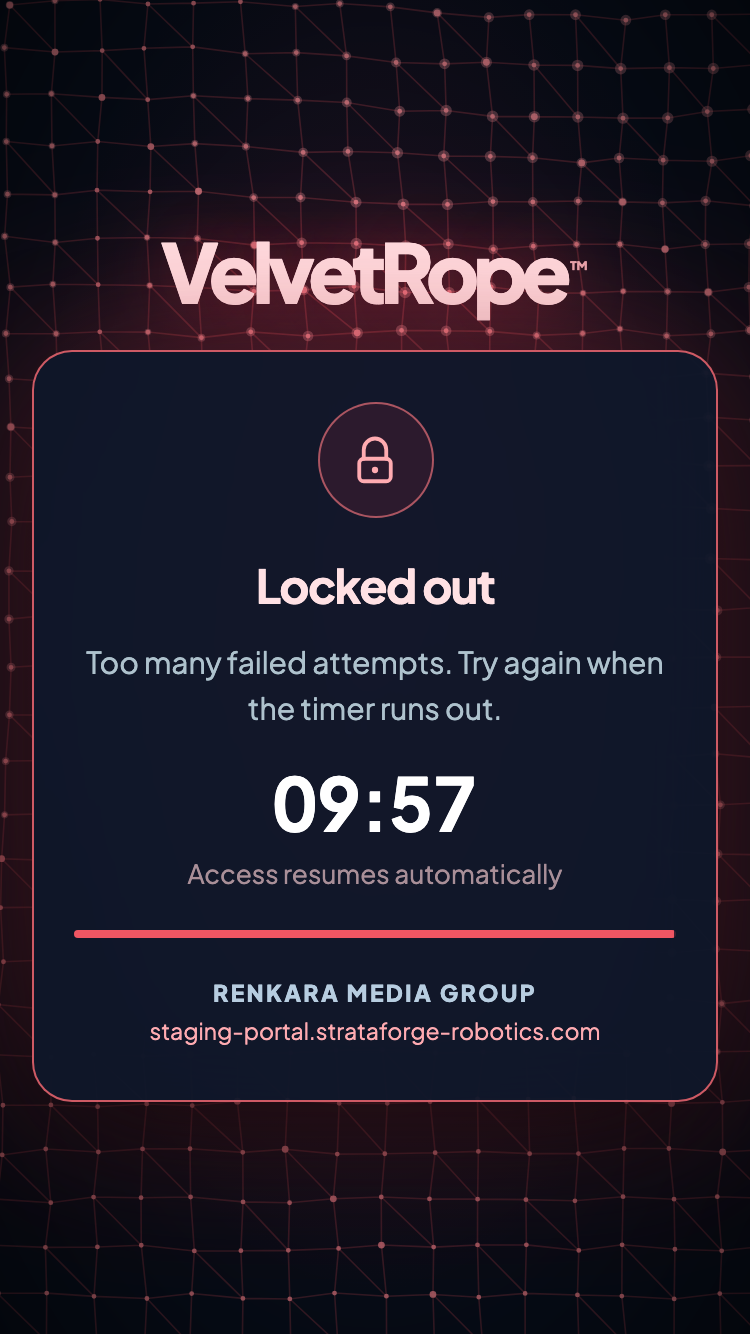
The third wrong key ends in a lockout screen: Locked out, a line saying there were too many failed attempts, a countdown from ten minutes, and a bar that drains. Reloading shows the same screen. When the timer reaches zero, access resumes by itself and the page reloads.
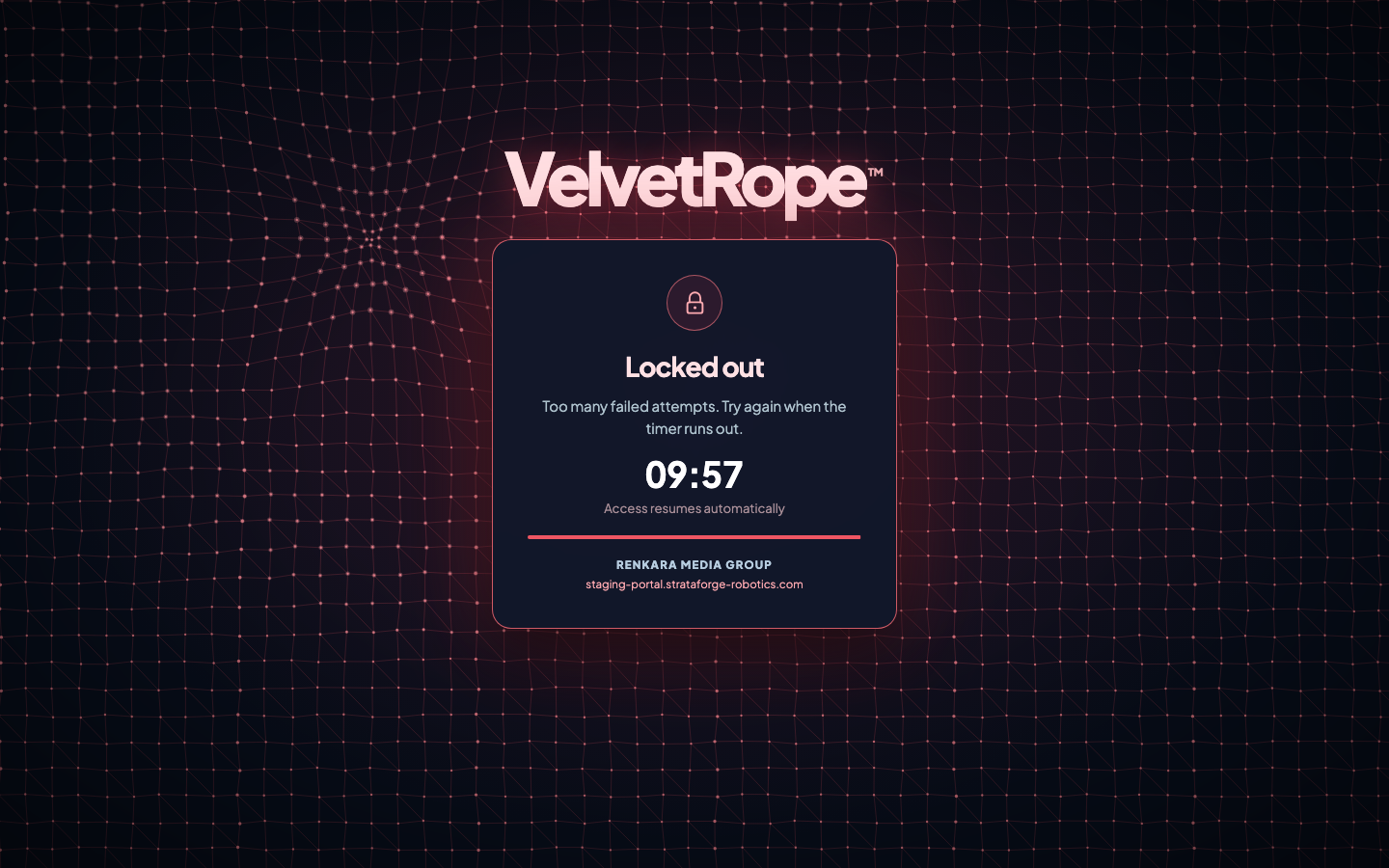
The lockout screen on a desktop: a red card with a padlock, the words Locked out, a countdown that has just begun from ten minutes, a red bar, and the staging address, over a red mesh.The lockout screen on a desktop: a red card with a padlock, the words Locked out, a countdown that has just begun from ten minutes, a red bar, and the staging address, over a red mesh.
On a desktop.
The lockout screen on a phone: a red card with a padlock, the words Locked out, a countdown, a red bar, and the staging address.The lockout screen on a phone: a red card with a padlock, the words Locked out, a countdown, a red bar, and the staging address.
On a phone.